

- Please head over to Settings > Home > Branding.
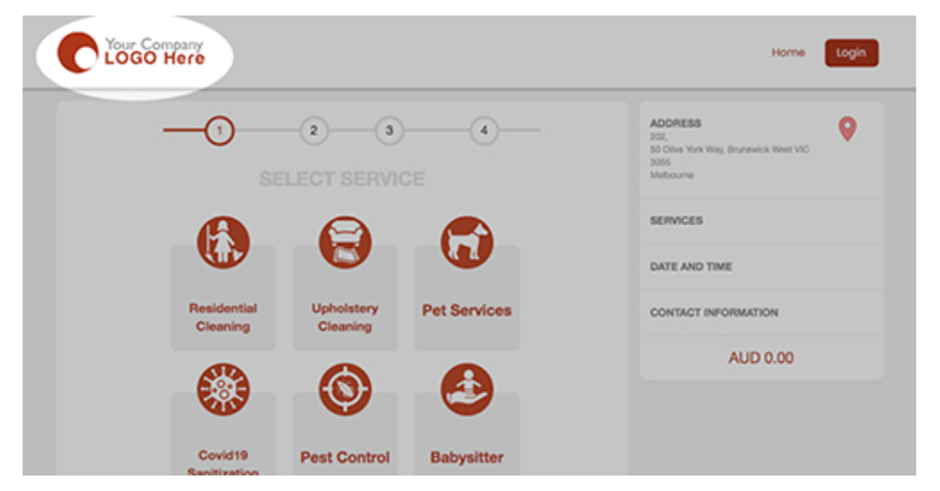
- Then click on the pencil icon under the logo. This will be your primary logo and it will be on your invoices, guest booking, customer login, and your customer app and would be preferable without background color.
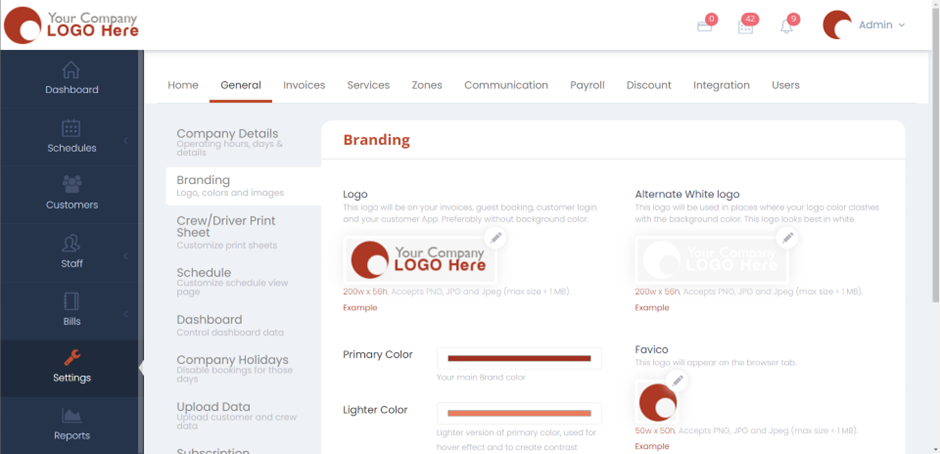
- The “Alternate White Logo” will be used in places where your logo color clashes with the background color. This logo looks best in white.
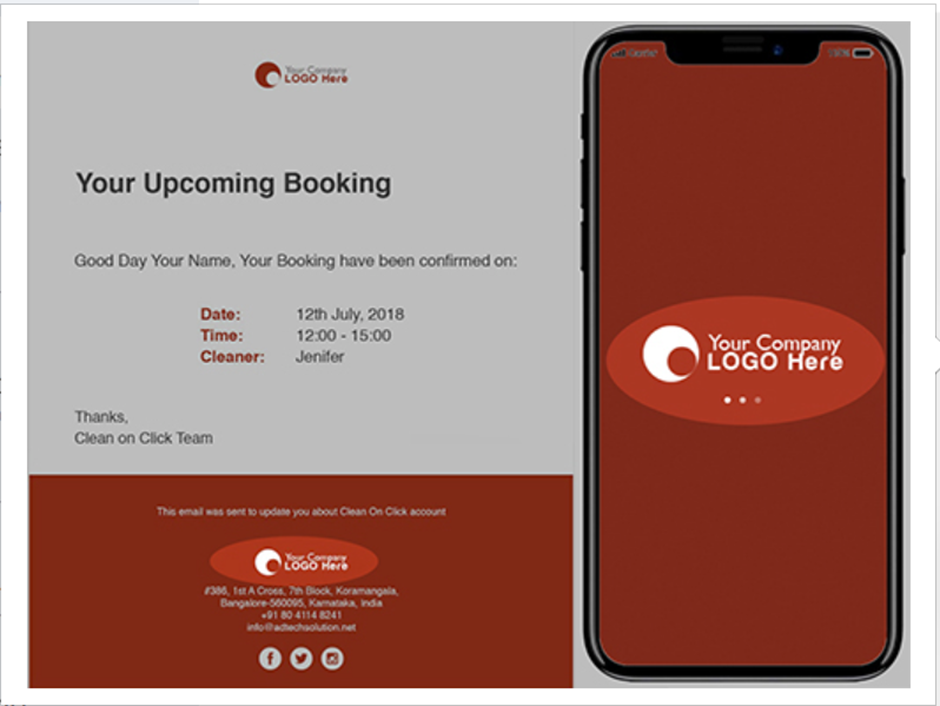
- Make sure you upload all the logos with the correct specifications as mentioned in Brilion.
- Favico is the logo that will appear on the browser tab. Click on the pencil icon to add one.
- Then you have the primary color – which is your main brand color, lighter color – the lighter version of the primary color used for a hover effect and to create contrasts. Lastly, the Button color is used for the buttons.
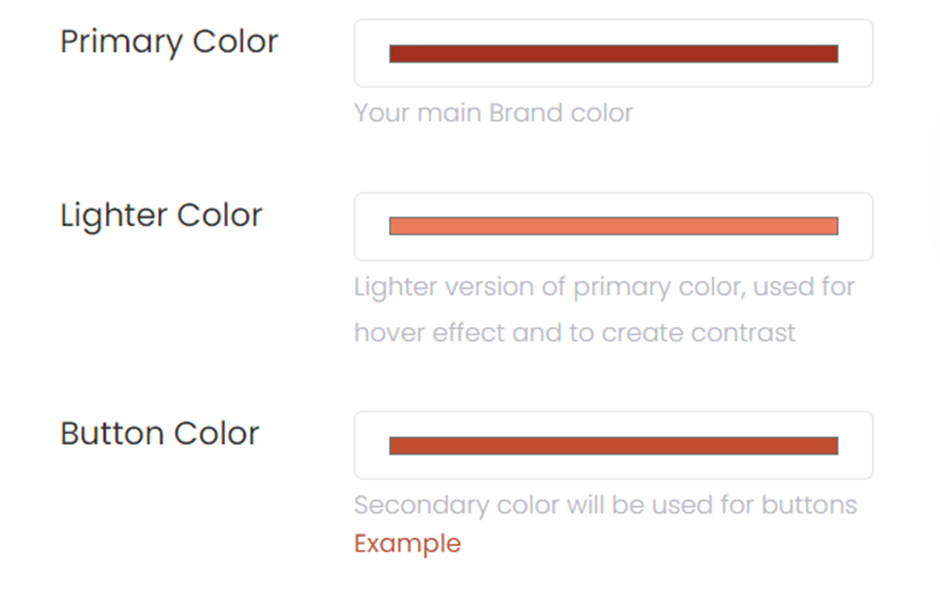
- Hit save and the changes will be applied.