

- You will be able to customize how the job and crews appear to you as an admin under the Schedule page. To do this, please head over either to the daily, weekly, or monthly view. The daily view has been selected in the following instance.
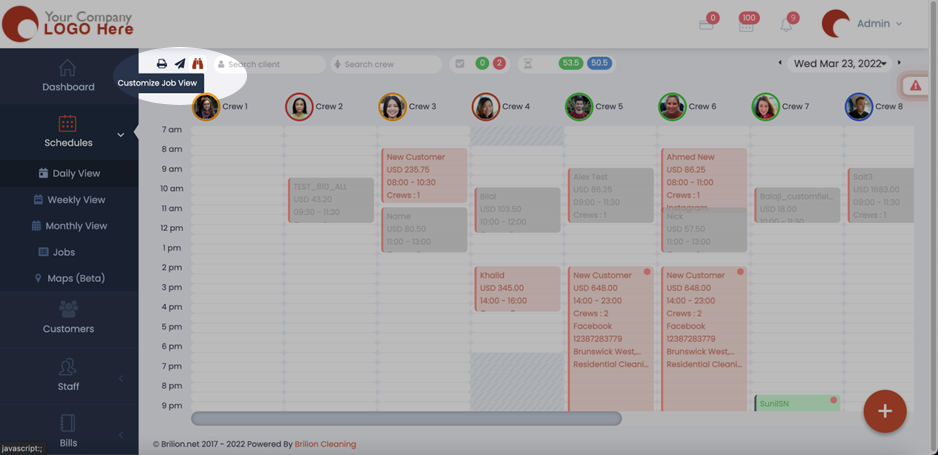
- Click on the Binocular icon which says Customize Job View.
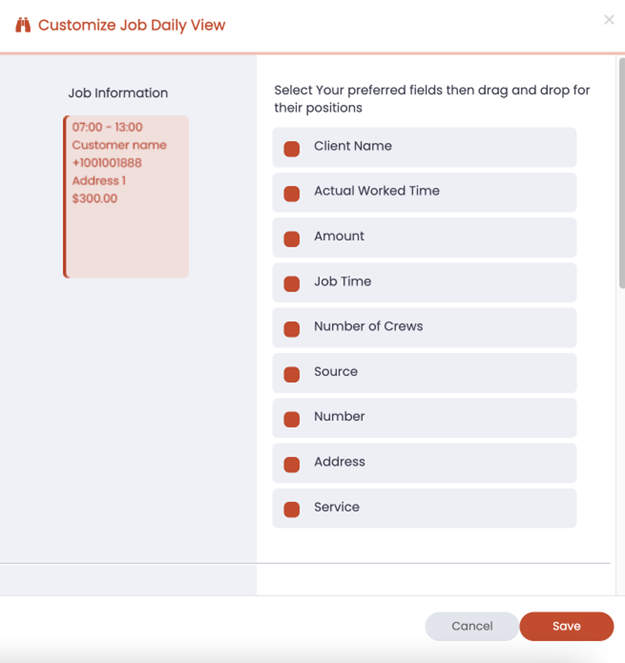
- Now you will see a page that pops up, where you can set their order of details for the job information. You can drag and drop their positions to adjust the order.
- You also have the option to choose the bucket color which will indicate whether the job is either one-off, weekly, monthly, and so on. You can have different colors indicate one of these.
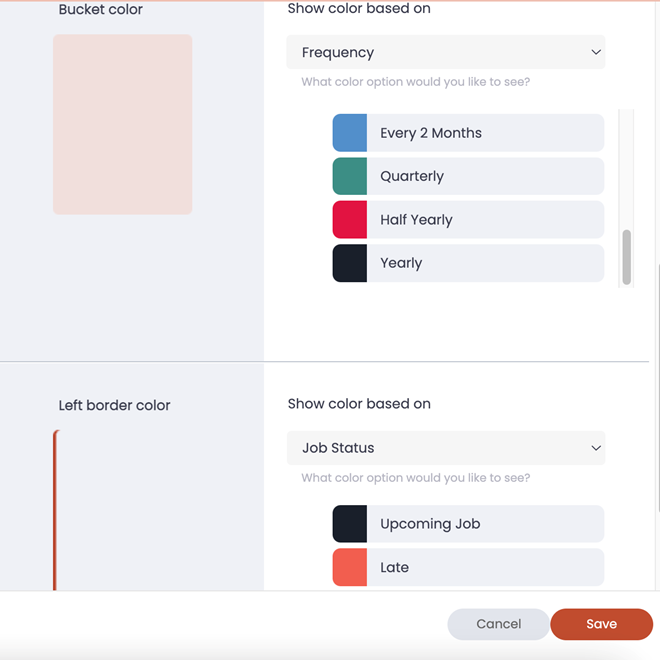
- The left border color can be customized based on source, frequency, job status, or service.
- This can be done for all the daily, weekly, and monthly views.
- Once you’re done, click on Save, and it’ll be updated to your preferred job view.