
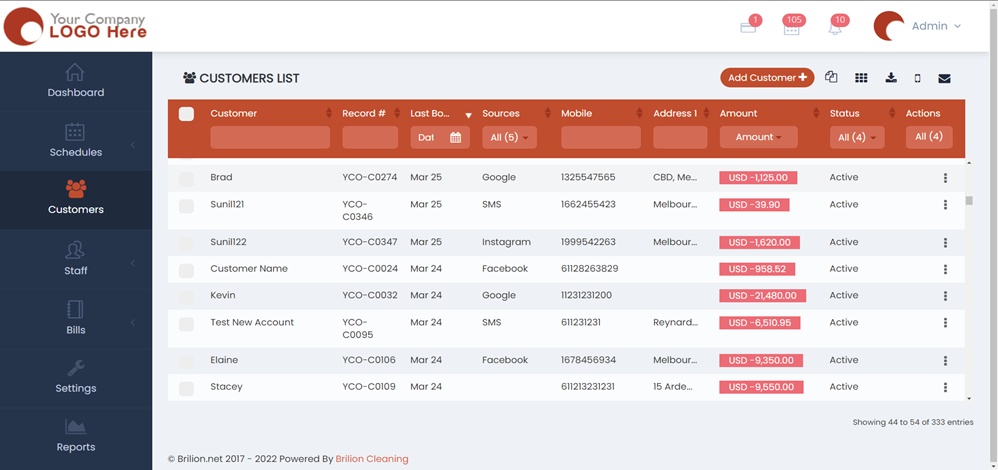
- Please head over to Customers. Under the customer’s list, click on the customer you want to add a booking for. In this case, Brad is selected as our customer.
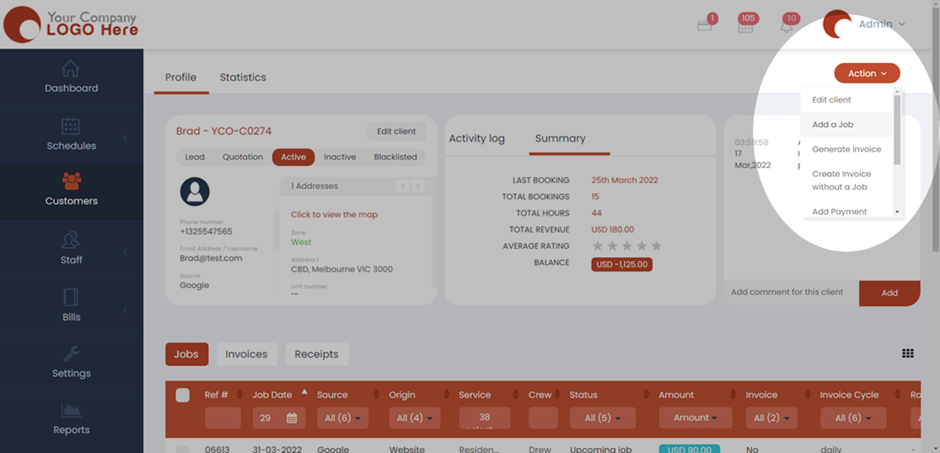
- Once you click on the selected customer, a new tab will open with the profile of that customer. Now find the Action button and click on Add a Job.
- You will now be navigated to the booking page and from here you will be able to make any additional bookings. To add a booking for the customer on the same day, you will need to select the date first for which you want to add the booking. Then, you will need to click on Add a job on the left-hand side of the booking page.
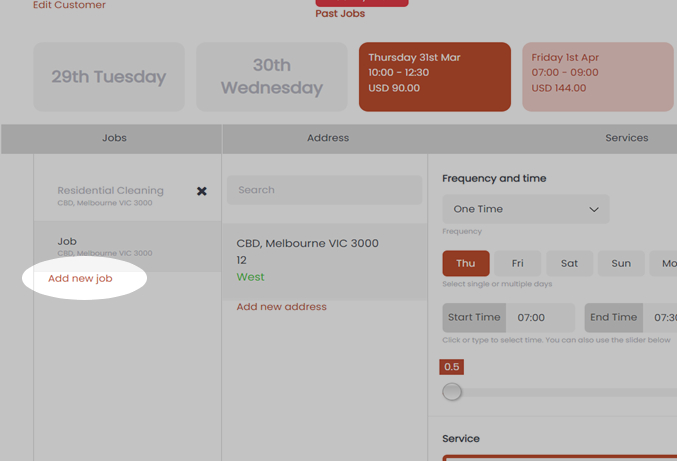
- Now, a new booking will appear named Job. Click on that and now select the Service, the Start and End time, and all the other details to proceed with the booking. Click on Save and then Done.
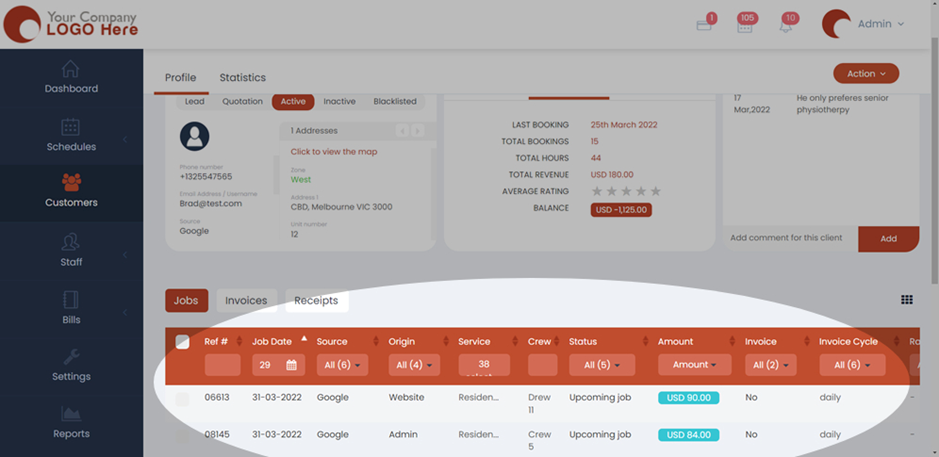
- Now, two jobs on the same day would appear under the Jobs tab for the customer. In our case, Brad now has two bookings on the 31st of March, 2022.