

What are zones?
A zone is a service area that your company covers. Admins and customers can only make a booking within that service area. With Brilion, you can create multiple zones or widen the zone area depending on your preference.
- To start setting up a zone, please head over to Settings > Zones.
- If you have a lesser number of crews, then you just create a circle by clicking on an area where you would want to provide your services. Click on Add New Zone and type in the name of the zone. Pick a color for that zone and simply left-click to create a zone. You can increase and decrease the circle’s size and drag and drop the circle wherever you want to. In this case, the South zone is represented in the color blue. That’s how you create a zone.
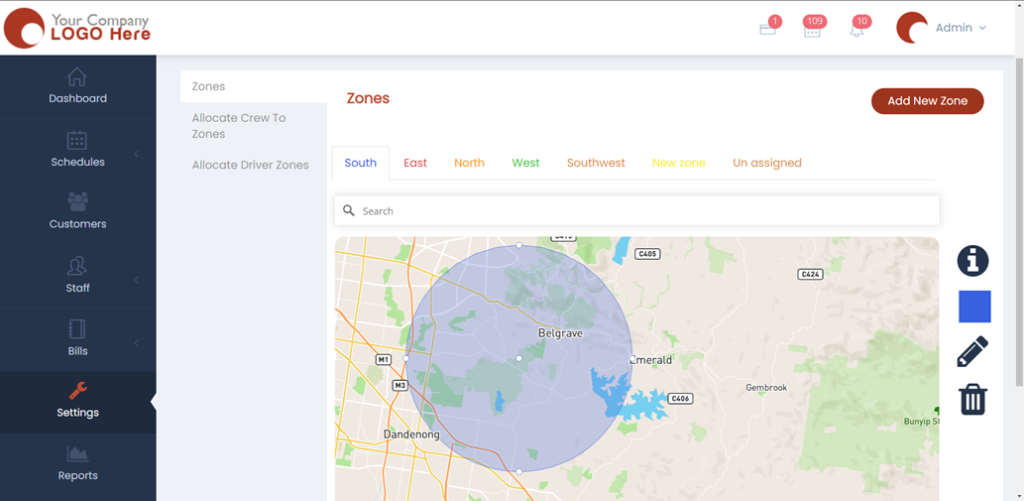
- For more complex companies, you can split your area into smaller zones. You can have multiple zones by clicking on Add New Zone. In this case, multiple circles are used to cover up smaller areas to fit in the zone.
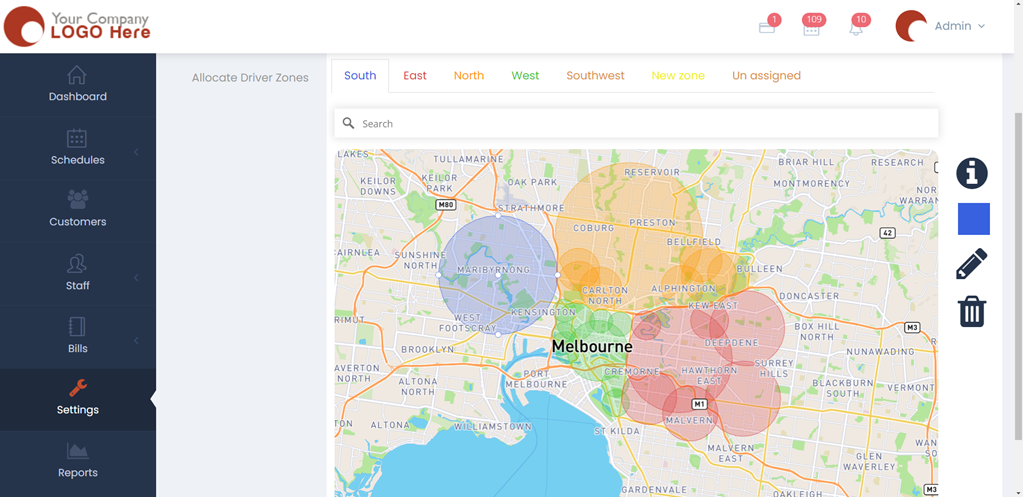
- Now, you can segregate your crews and allocate them into a specific zone. This way, they only get jobs from their allocated zones.
- You can automate this process by using the Auto-Assign feature. Auto-Assign means that if the first job happens to be in any of their zones, they then become a priority for other jobs that fall in the same zone for the rest of the day. This reduces their time and increases their efficiency and gives them the flexibility to work in other zones.
- Another reason to have multiple zones is if you have multiple dedicated drivers. You will be able to allocate driver to zone and that will make the commute easier and more efficient for your drivers and crews.